D7500 Continuously Focus When in Video Recording
Movies can be recorded in live view.
-
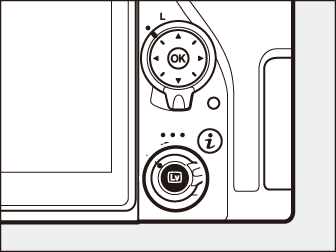
Rotate the live view selector to 1 (movie live view).
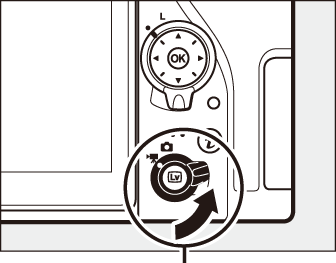
Live view selector
-
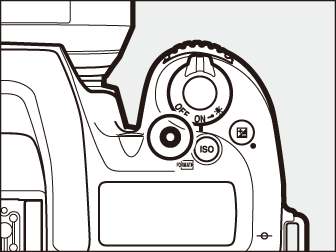
Press the a button.
The mirror will be raised and the view through the lens will be displayed in the camera monitor, modified for the effects of exposure. The subject will no longer be visible in the viewfinder.
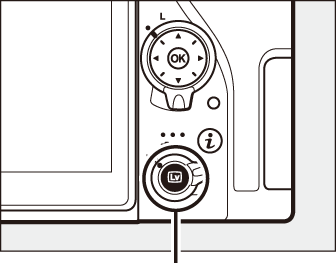
a button
A 0 icon (0 The Live View Display: Movies) indicates that movies can not be recorded.
In modes P, S, A, and M, white balance can be set at any time by pressing the L (U) button and rotating the main command dial (0 White Balance).
-
Focus.
Frame the opening shot and press the shutter-release button halfway to focus; to zoom in for precise focus as describe in "Live View Zoom Preview" (0 Live View Zoom Preview), press the X (T) button. Note that the number of subjects that can be detected in face-priority AF drops during movie recording.

The following exposure settings can be adjusted in movie mode:
Aperture Shutter speed ISO sensitivity P, S 1 ー ー ー 2, 3 A ー ー 2, 3 M 3, 4 Other shooting modes ー ー ー -
Start recording.
Press the movie-record button to start recording. A recording indicator and the time available are displayed in the monitor. Exposure can be locked by pressing the A AE-L/AF-L button (0 Autoexposure Lock) or altered by up to ±3 EV in steps of 1/3 EV using exposure compensation (0 Exposure Compensation); spot metering is not available. In autofocus mode, the camera can be refocused by pressing the shutter-release button halfway or by tapping your subject in the monitor.
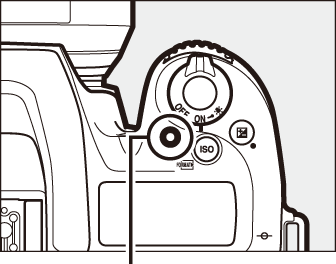
Movie-record button
Recording indicator
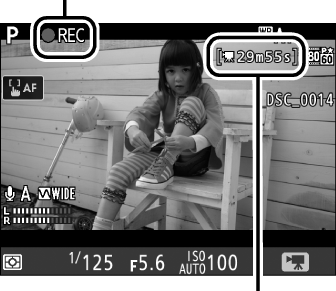
Time remaining
The camera can record both video and sound; do not cover the microphone on the front of the camera during movie recording. Note that the built-in microphone may record sounds made by the camera or lens during autofocus, vibration reduction, or changes to aperture.
-
End recording.
Press the movie-record button again to end recording. Recording will end automatically when the maximum length is reached, or the memory card is full (note that depending on memory card write speed, shooting may end before the maximum length is reached).
-
Exit live view.
Press the a button to exit live view.
For information on:
- Choosing how the camera focuses in movie mode, see "Autofocus" (0 Autofocus).
- Focusing using the lens focus ring, see "Manual Focus" (0 Manual Focus).
- Using the i Button
- The Live View Display: Movies
- Viewing and Hiding Indicators
- Frame Size, Frame Rate, and Movie Quality
- Indices
- The Movie Crop
- Taking Photos in Movie Mode
Using the i Button
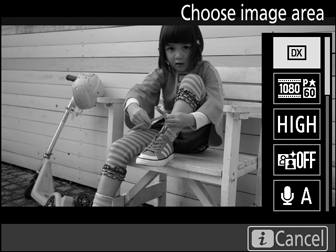
The options listed below can be accessed by pressing the i button in movie mode. Use the touch screen or navigate the menu using the multi selector and J button, using the multi selector to highlight items, pressing 2 to view options, and pressing J to select the highlighted option and return to the i-button menu. Press the i button again to exit to the shooting display.
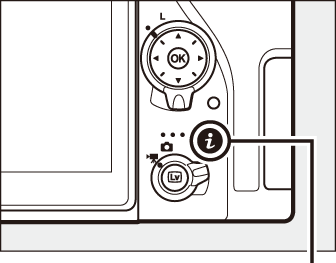
i button
The optional ME-1 stereo microphone or ME-W1 wireless microphone can be used to record sound for movies (0 Other Accessories).
Third-party headphones can be used. Note that high sound levels may result in high volume; particular care should be taken when headphones are used.
The Live View Display: Movies
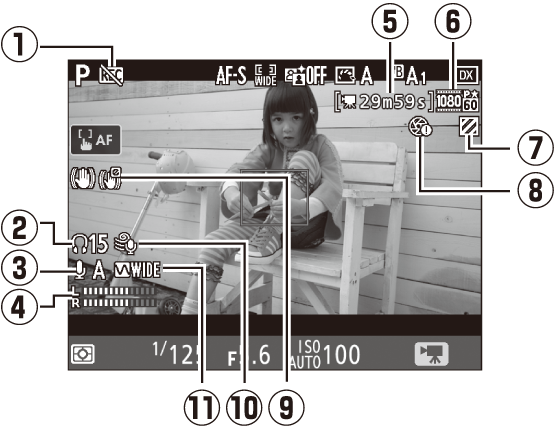
A count down will be displayed 30 s before live view ends automatically (the timer turns red if live view is about to end to protect the internal circuits or, if an option other than No limit is selected for Custom Setting c4—Monitor off delay > Live view; 0 Monitor off Delay—5 s before the monitor is due to turn off automatically). Depending on shooting conditions, the timer may appear immediately when live view is selected. Movie recording will end automatically when the timer expires, regardless of the amount of recording time available.
Headphone volume can not be adjusted during recording. If an option other than I (microphone off) is currently selected, microphone sensitivity can be changed to any setting other than I while recording is in progress.
To hide or display indicators in the monitor, press the R button.
| Virtual horizon | Information on | Information off |
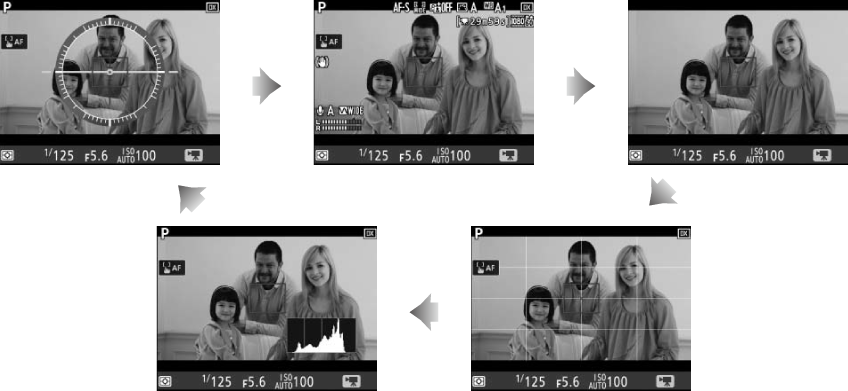
| Histogram | Framing guides |
Frame Size, Frame Rate, and Movie Quality
The Frame size/frame rate option in the movie shooting menu is used to choose the movie frame size (in pixels) and frame rate. You can also choose from two Movie quality options: high and normal. Together, these options determine the maximum bit rate, as shown in the following table.
| Option 1 | Maximum bit rate (Mbps) ( high quality/Normal) | Maximum length | |
|---|---|---|---|
| r | 3840 × 2160 (4K UHD); 30p 2 | 144 | 29 min. 59 s 3 |
| s | 3840 × 2160 (4K UHD); 25p 2 | ||
| t | 3840 × 2160 (4K UHD); 24p 2 | ||
| y/y | 1920 × 1080; 60p | 48/24 | |
| z/z | 1920 × 1080; 50p | ||
| 1/1 | 1920 × 1080; 30p | 24/12 | |
| 2/2 | 1920 × 1080; 25p | ||
| 3/3 | 1920 × 1080; 24p | ||
| 4/4 | 1280 × 720; 60p | ||
| 5/5 | 1280 × 720; 50p | ||
Indices
If Index marking is assigned to a control using Custom Setting g1 (Custom control assignment, 0 Custom Control Assignment), you can press the selected control during recording to add indices that can be used to locate frames during editing and playback (0 The p Icon; note that indices can not be added in i mode). Up to 20 indices can be added to each movie.
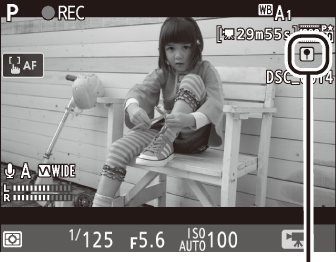
Index
For information on:
- Frame size, frame rate, microphone sensitivity, and ISO sensitivity, see "The Movie Shooting Menu: Movie Shooting Options" (0 1 The Movie Shooting Menu: Movie Shooting Options).
- Choosing the role played by the J button, see A > Custom Setting f2 (OK button; 0 OK Button).
- Choosing the roles of the Fn1, Fn2, and A AE-L/AF-L buttons, see A > Custom Setting g1 (Custom control assignment; 0 Custom Control Assignment).
- Choosing whether the shutter-release button can be used to start live view or to start and end movie recording, see A > Custom Setting g1 (Custom control assignment) > Shutter-release button (0 Custom Control Assignment).
The Movie Crop
Movies have an aspect ratio of 16 : 9 and are recorded using a crop that varies with the frame size and the option selected for Choose image area in the movie shooting menu (0 Frame Size, Frame Rate, and Movie Quality, Choose Image Area).
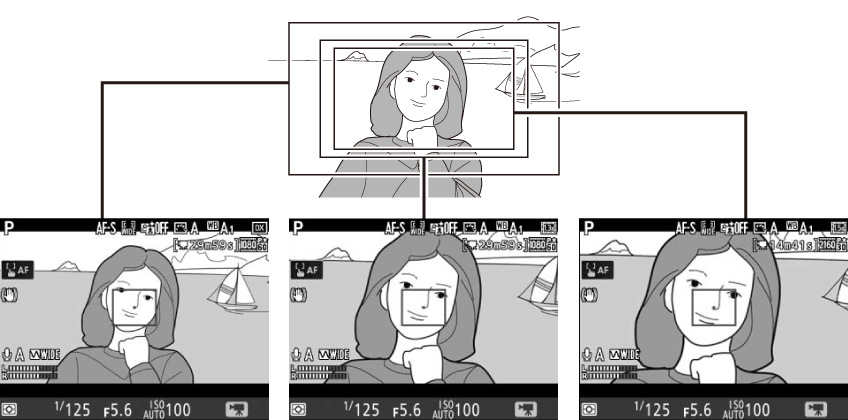
| 1920 × 1080 and 1280 × 720 (DX) | 1920 × 1080 and 1280 × 720 (1.3×) | 3840 × 2160 |
Movie crop sizes are given below:
- At a frame size of 3840 × 2160, the movie crop is approximately 16.2 × 9.1 mm, regardless of the option selected for Choose image area. The apparent focal length is approximately 1.5× greater than that for DX format.
- With DX selected for Choose image area and a frame size of 1920 × 1080 or 1280 × 720, the movie crop is approximately 23.5 × 13.3 mm.
- With 1.3× selected for Choose image area and a frame size of 1920 × 1080 or 1280 × 720, the movie crop is approximately 18.0 × 10.1 mm. The apparent focal length is approximately 1.3× greater than that for DX format.
Taking Photos in Movie Mode
To take photos in movie mode (either in live view or during movie recording), select Take photos for Custom Setting g1 (Custom control assignment) > Shutter-release button (0 Custom Control Assignment). Photos with an aspect ratio of 16 : 9 can then be taken at any time by pressing the shutter-release button all the way down. If movie recording is in progress, recording will end and the footage recorded to that point will be saved.

Photographs are recorded in the format selected for Image quality in the photo shooting menu (0 Image Quality). For information on image size, see "Image Size" (0 Image Size). Note that the exposure for photographs can not be previewed when the live view selector is rotated to 1; accurate results can be achieved in mode M by previewing exposure with the live view selector rotated to C.
Image Size
The size of photos taken in movie mode varies with the movie frame size (0 Frame Size, Frame Rate, and Movie Quality) and, in the case of photos taken at frame sizes of 1920 × 1080 and 1280 × 720, with the image area and the option selected for Image size in the photo shooting menu (0 Image Size).
| Frame size | Image area | Image size | Size (pixels) |
|---|---|---|---|
| 3840 × 2160 | — | 3840 × 2160 | |
| 1920 × 1080 1280 × 720 | DX | Large | 5568 × 3128 |
| Medium | 4176 × 2344 | ||
| Small | 2784 × 1560 | ||
| 1.3× | Large | 4272 × 2400 | |
| Medium | 3200 × 1800 | ||
| Small | 2128 × 1192 | ||
If the camera is connected to an HDMI device, the view through the lens will appear both in the camera monitor and on the HDMI device.
If Record movies is selected for Custom Setting g1 (Custom control assignment) > Shutter-release button (0 Custom Control Assignment), the shutter-release buttons on optional wireless remote controllers and remote cords (0 Other Accessories) can be pressed halfway to start live view or pressed all the way down to start and end movie recording.
Movies are recorded in the sRGB color space. Flicker, banding, or distortion may be visible in the monitor and in the final movie under fluorescent, mercury vapor, or sodium lamps or with subjects that are in motion, particularly if the camera is panned horizontally or an object moves horizontally at high speed through frame (for information on reducing flicker and banding, see Flicker reduction, 0 Flicker Reduction). Flicker may also appear while power aperture is in use. Jagged edges, color fringing, moiré, and bright spots may also appear. Bright regions or bands may appear in some areas of the frame with flashing signs and other intermittent light sources or if the subject is briefly illuminated by a strobe or other bright, momentary light source. Avoid pointing the camera at the sun or other strong light sources. Failure to observe this precaution could result in damage to the camera's internal circuitry. Note that noise (randomly-spaced bright pixels, fog, or lines) and unexpected colors may appear if you zoom in on the view through the lens (0 Live View Zoom Preview) in movie mode.
Flash lighting can not be used.
Recording ends automatically if the lens is removed or the mode dial or the live view selector is rotated to a new setting.
Using live view for extended periods may cause the grip and areas of the camera around the monitor to become hot. This does not indicate a malfunction.
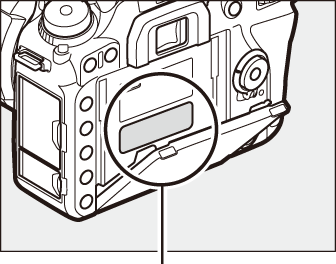
This area becomes particularly hot.
A beep may sound if you adjust aperture, use the live view selector, or rotate the mode dial during live view. This does not indicate an error or malfunction.
Source: https://onlinemanual.nikonimglib.com/d7500/en/21_movies_01.html
0 Response to "D7500 Continuously Focus When in Video Recording"
Enregistrer un commentaire